
How to Battle iTunes Match (And Mostly Win)

Apple Music is a fine place to host your ripped music files. Lossless playback, listening stats, easy syncing across your hardware. There's just one thing standing between you and bliss: iTunes Match.
It can be a formidable foe.
The Promise and The Pain
iTunes Match launched in 2011 as a bridge between “I have MP3s smattered across my hard drive1” and seamless, cloud-based music streaming. It's supposed to scan your files, find matches in Apple's cloud library, and stream those copies instead of yours.
For $25 a year, Apple gave you a clean library of your files you could stream anywhere, without having to worry about what was or wasn’t downloaded.
Today, you can still pay that $25 a year, or pay for an Apple Music subscription and get the same matching service for your own music files.
However.
iTunes Match doesn’t always get it right. Sometimes it’s like the drunk guy at a corporate function who calls you Bob2 even though you’re wearing a name tag.
So you’ll find, sometimes, when adding your own ripped files to Apple Music, that iTunes Match uses the wrong album artwork, splits up an album in two,3 just plain refuses to upload a track, and other joys that will mess up your library.
Let’s run through a couple of common issues.
Album Splitting
If we’re talking about splitting up, then it only makes sense to use a Beatle as the example4. This compilation from Paul McCartney, called Pure McCartney, was ravaged by iTunes Match, splitting it five ways.5
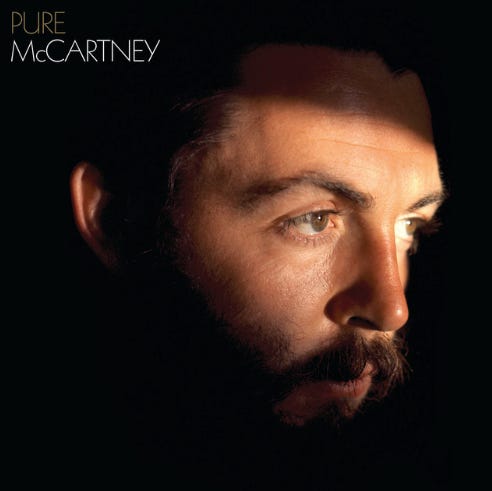
Two moves will solve most album splitting issues.
First, go the Apple Music album view on your Mac. Click through to the first instance of the album get the list of songs. Hit Command + A to highlight all the tracks. Then right click (or hit Command +I) and select Get Info.
Now you’re into the track data, and can commence your role as the Song Sanitation Department.
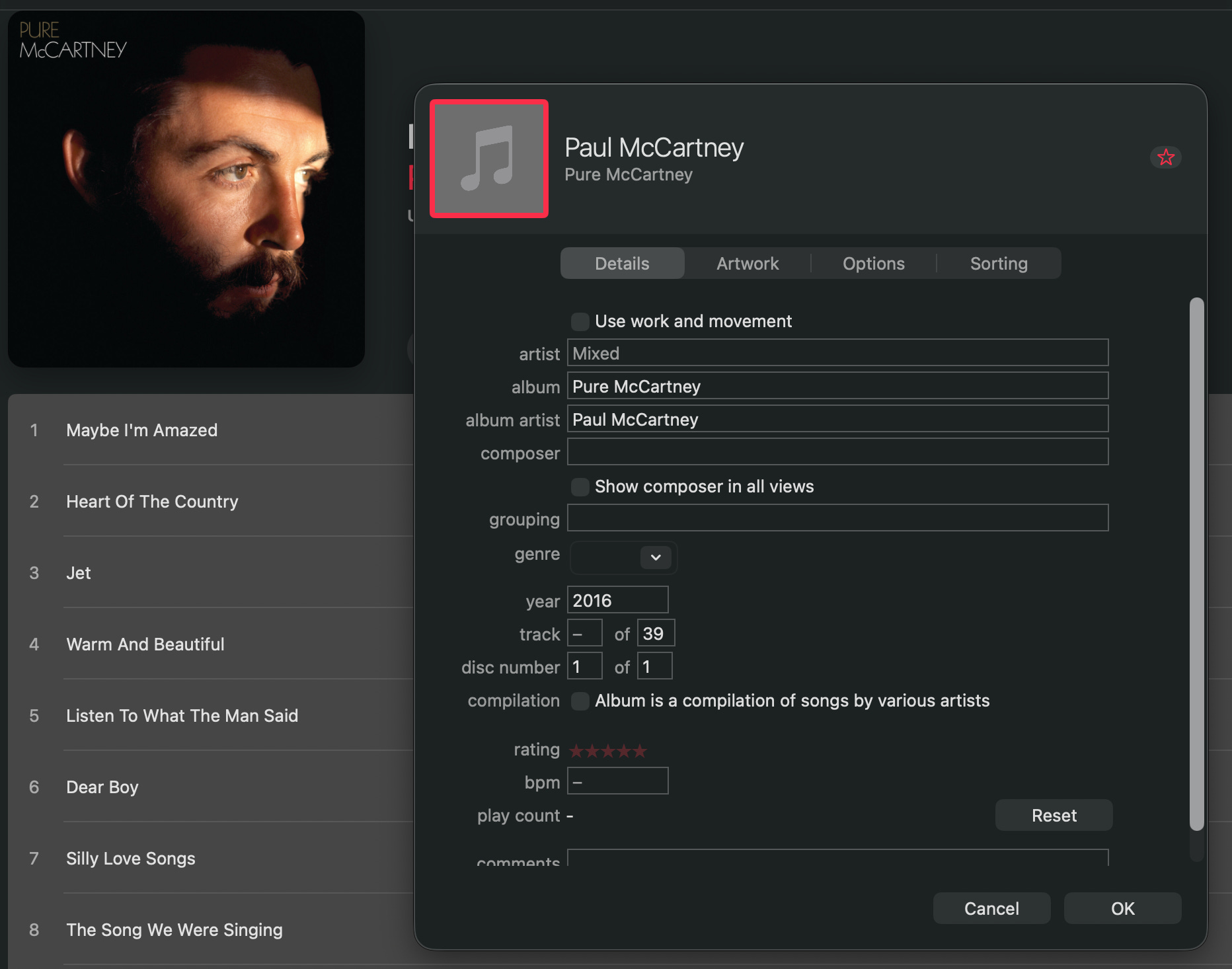
The two moves that often solve all:
Make sure “album artist” is the same for every track. In this case, that meant overwriting “Paul McCartney & Wings” “Paul McCartney & Michael Jackson,” etc. with simply “Paul McCartney.” You can also use “Various Artists” here if you like, but that will move the album out of the artist’s category and into a Various Artists bucket. That categorization is best left to compilations, like movie soundtracks or the Forever 80s compilation which was endlessly pitched on TV in the 90s that I picked up for $2 last year6.
Speaking of compilations, that’s your fallback if unifying “Album Artist” doesn’t do the trick. It’s a checkbox. Click it, and iTunes Match says, “Ooooh, there’s a bunch of different artists on the same album. Cool, let me bunch them back together.” Except when it doesn’t, of course.
If that still doesn’t work, you can always try deleting and reuploading the album. And sometimes, well, sometimes no matter what you try technically or which patron saint you pray to, Bon Jovi’s Greatest Hits will simply not unify.
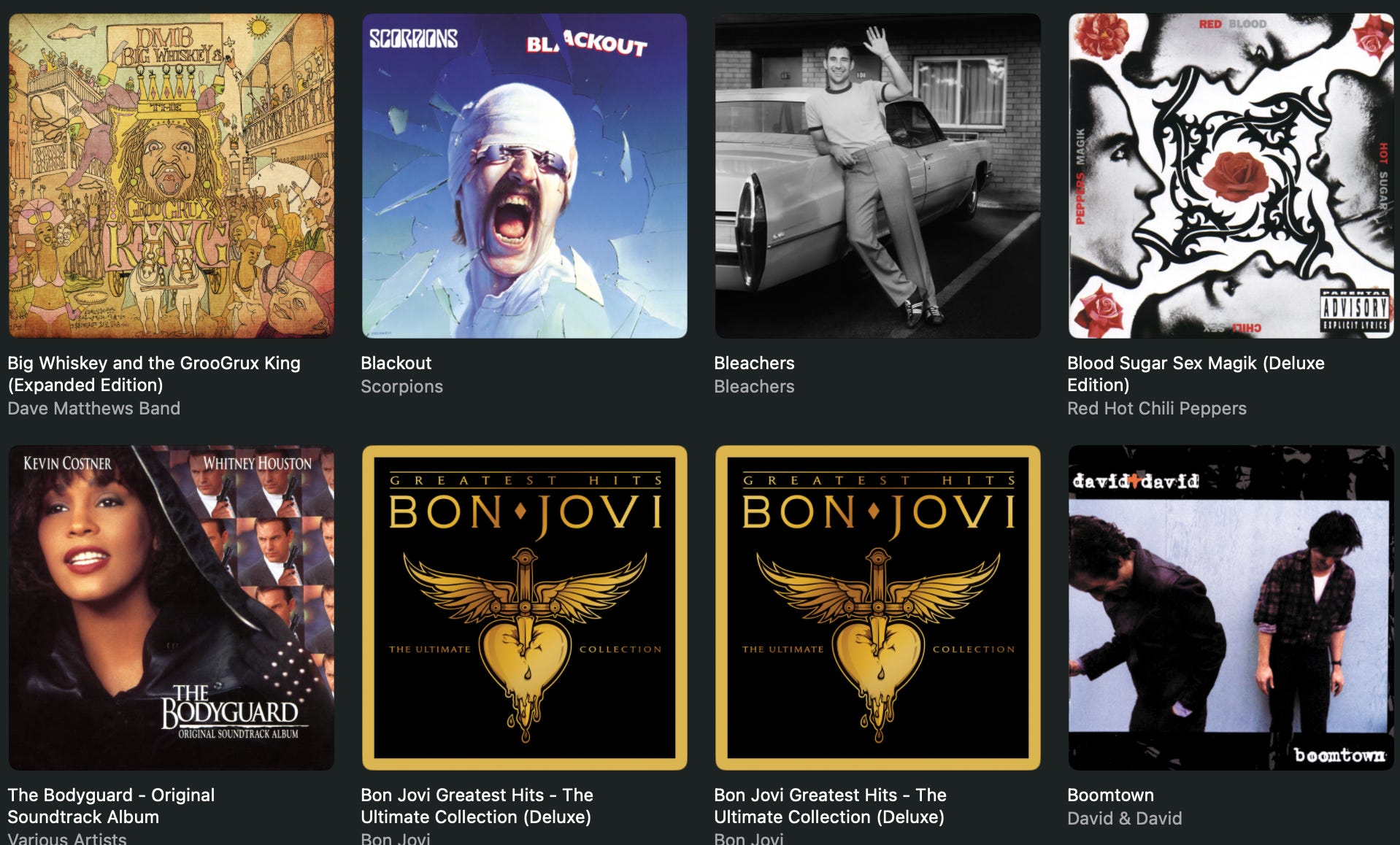
No matter what I tried, “Blaze of Glory” would not join its Bon Jovi brethren on the same album. When I scroll on my Mac, the folly is always there.
Except it did unify on my iPhone.
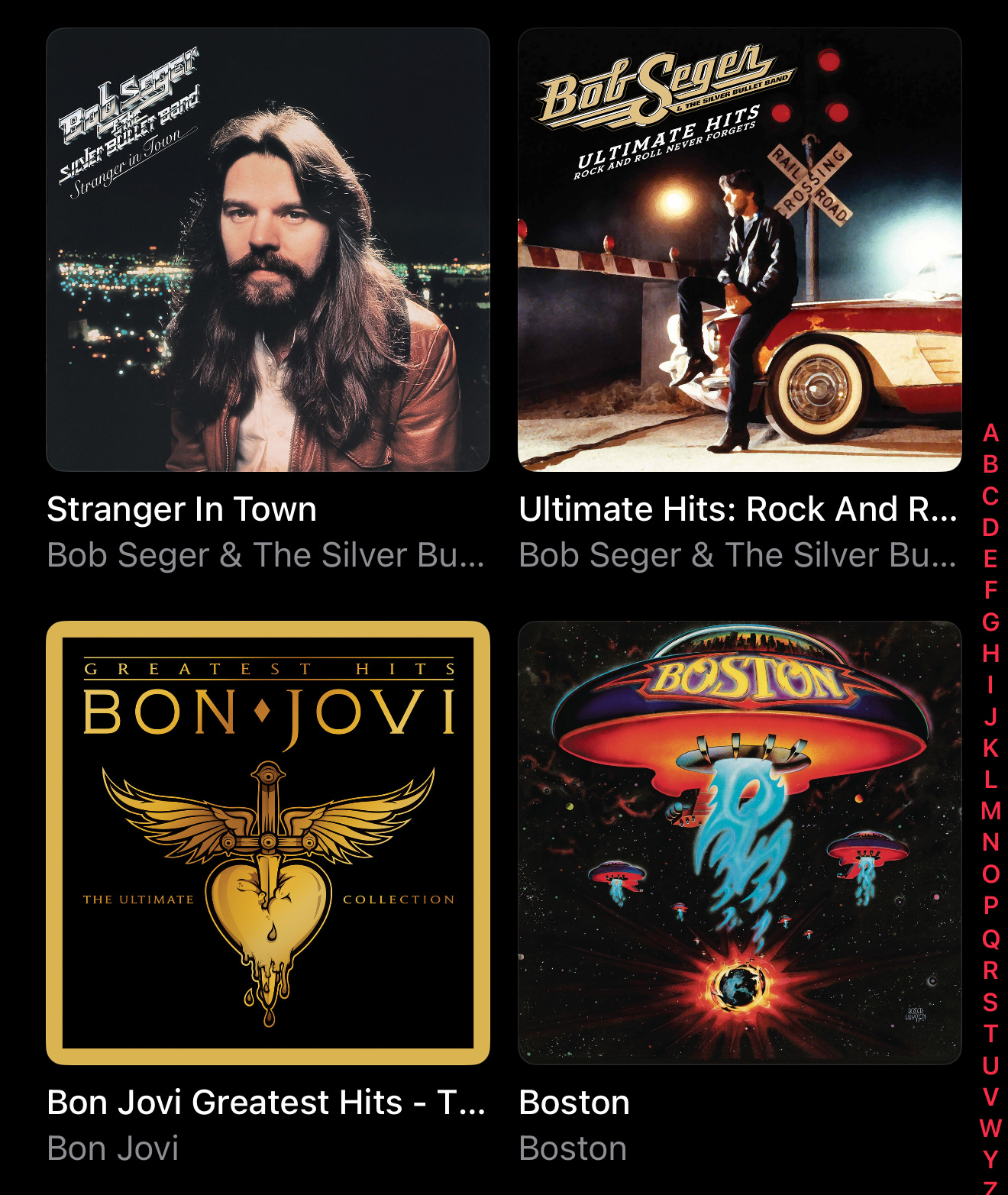
iTunes Match, ladies and gentlemen!
The Graying
I ran into this problem frequently. I’d rip a CD and upload it. All looked well, until I went to play a certain song through my iPhone instead of my Mac.
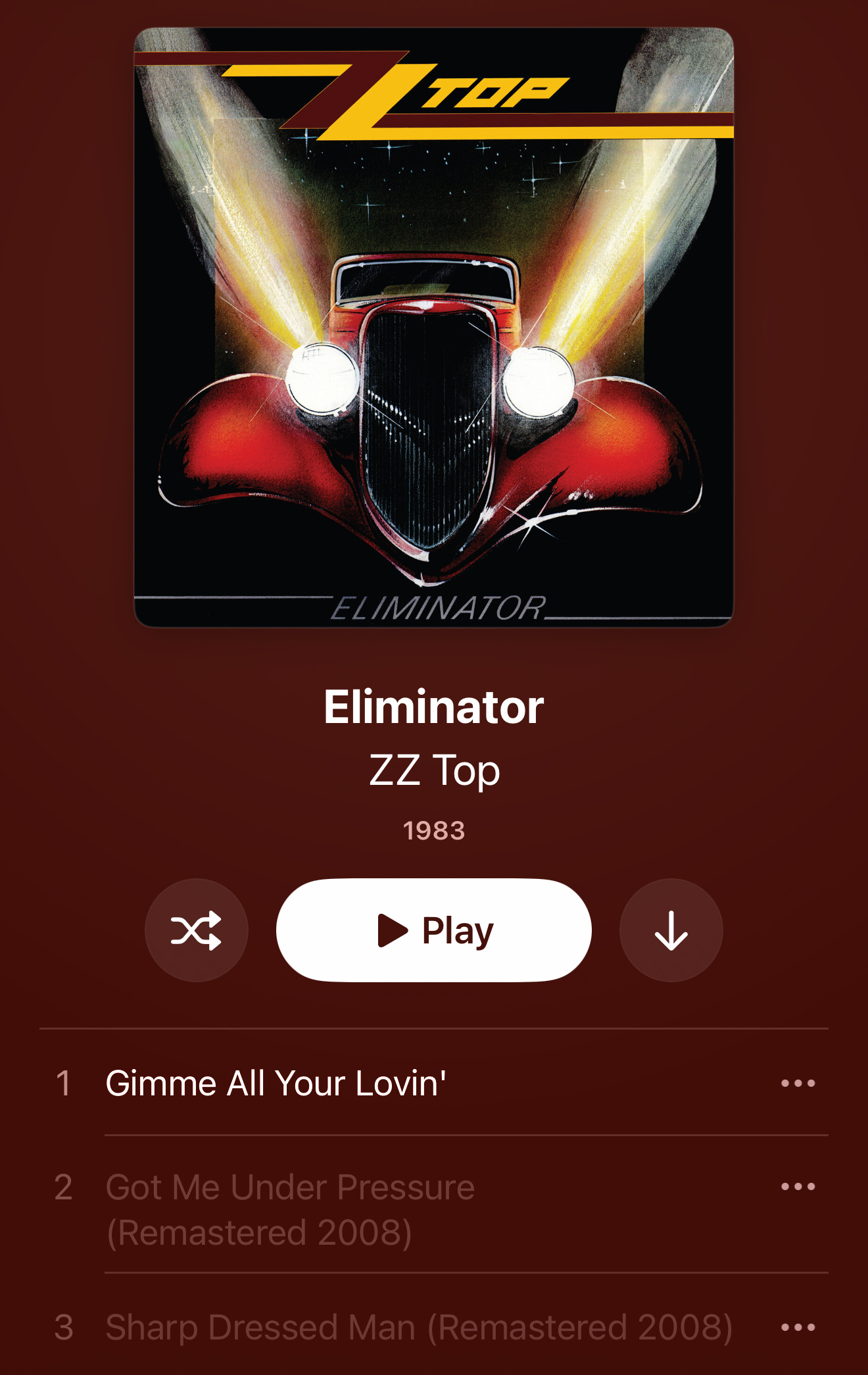
Here you see some songs from Eliminator, eliminated by iTunes Match.
Well, my Classic Rock Mix playlist was not going to fly without “Got Me Under Pressure” and “Sharp Dressed Man7”.
It’s fixable.
When The Graying happens to you, and it will, your best bet is to delete the grayed out tracks from your library and re-upload. Other times, the whole album needs to be reset.
Annoying, a little time-consuming if you have a decent-sized library, but not terribly difficult.
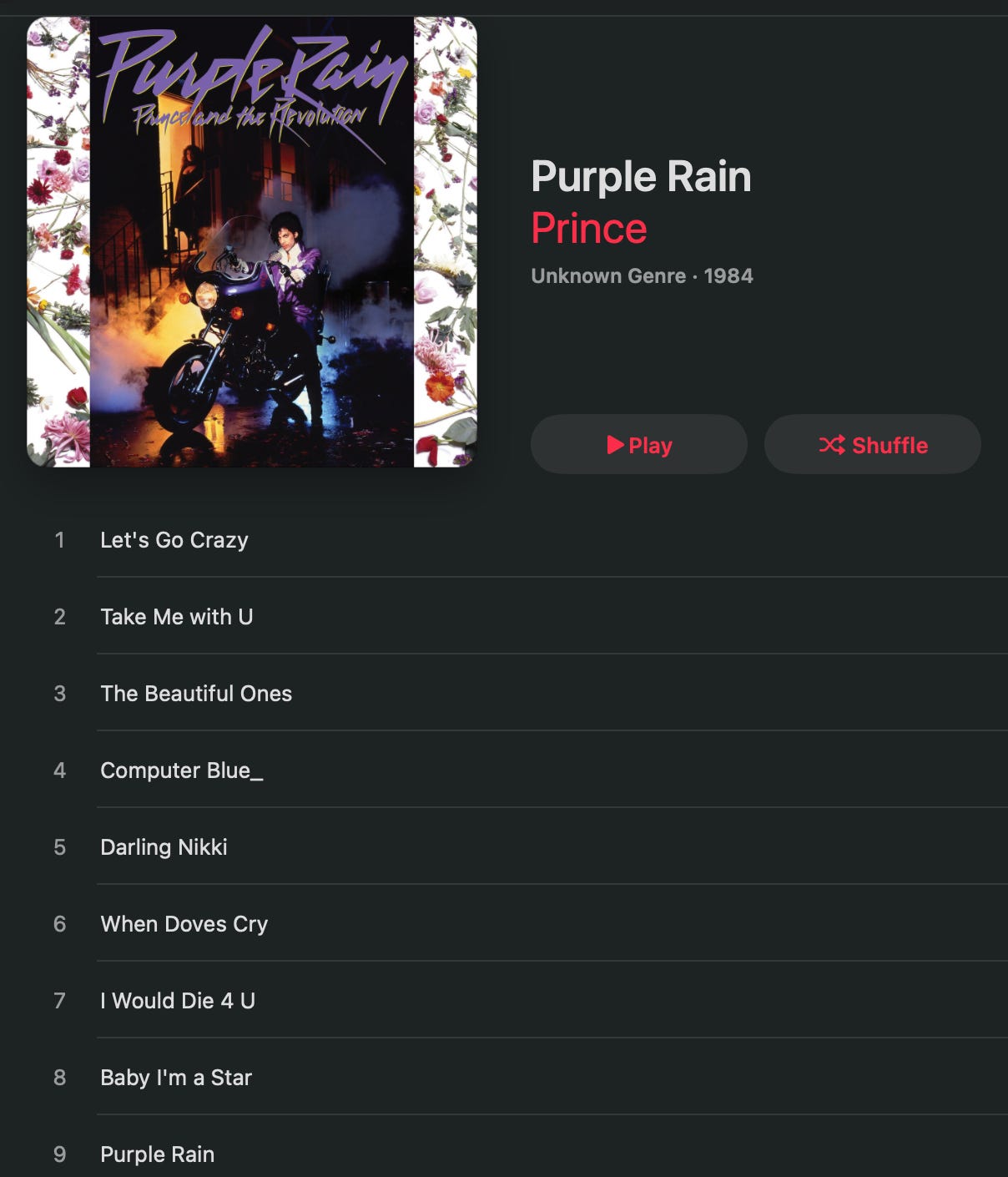
Certain tracks have reputations for going gray8, like “Computer Blue” from Prince and The Revolution’s Purple Rain album. Apparently that track appears on a number of different albums and causes iTunes Match to fritz out about its placement.
The only option that worked was to add an underscore to the track title by altering its name inside Apple Music. At that point, Apple Music says “OK, I don’t know what this is, I can’t match it, I’ll just leave it alone.”
So my copy of “Computer Blue” is titled “Computer Blue_”, and sits in its rightful slot, track #4, on Purple Rain.
Other Normie Issues
Those are the most common technical issues most civilians will encounter when uploading their collections.
Other annoyances, like stuck tracks that won’t upload, can often be remedied by going to File > Update Cloud Library to force the upload. Failing that, deleting and re-uploading9 often solves the problem.

But outside the normal civilian existence lurks a population that’s deeply into tagging their music. You can tag at the album or track level in lots of creative ways: era, genre, songs that remind you of sophomore year of college. It’s up to you, and can be a big part of curating your collection.
Most people don't mess with tags. But some people really mess with them.
And iTunes Match can really mess with those people. Horror stories abound of hours and hours of tagging work being nuked by Apple Music.
We won’t get into tagging inside Apple Music today. We might another day, if I venture down that rabbit hole myself.
And we may get into tidying up Listening History at some point.
For now, I have a mostly clean and crisp library of my own files.10 And if you upload your library and have the patience for some simple cleanup afterwards, you will, too.
If you get stuck, I’d be interested to hear about what’s going on in the comments. Let’s see if we can fix it. As long as it’s not “Computer Blue_”.
Subscribe now for more solutions to Apple Music problems you didn't know existed.
And some carrying unspeakable viruses, no doubt.
Or Betty, or whatever. You get the point.
Or three, or four, in one case of mine, five. As you’ll see.
Still too soon?
A fifth split, in tribute to the fifth Beatle, I suppose.
Hall & Oates? Toto? Michael McDonald? James Ingram? Hanging out together? Score.
Obviously.
Much like the iconic beards of Billy Gibbons and the late Dusty Hill.
By now, you can tell this is the Apple Music equivalent of unplugging and restarting a track.
“Blaze of Glory” be damned.