
The collector's Apple Music system
I deleted my entire music library and built this instead

In my last post, I shared my adventures (and the eventual ejection) of a network accessible storage system, which, in theory, would allow me to host and then play my own music files from anywhere, any time.
It didn’t work out.
And as it turned out, the right solution was sitting there all along: Apple Music.
My Apple Music library was a Frankensteined mess of my own music files (uploaded from CD rips and iTunes purchases) and streaming songs from Apple Music I’d “added to library” over a decade using the service.
Unseemly. Unowned. Unrecoverable.
So I deleted the entire Apple Music library and started over, ripping one CD at a time.
Back to square one1.
The Great Erasing
Deleting your library isn’t hard. On your Mac, go to the songs view in Apple Music. Press Control + A to select all. Right click. Select delete from library.
Poof, done.
Clean slate. Unfortunately, a little too clean.
Mistake #1: Not backing up my data and playlists first
I’m a playlist builder2, with around 30 created over a decade. Some had close to 1,000 songs.
When I deleted my music library, guess what else went away? The playlist content.
Not the playlist shells, though. Oh no. They stayed right there. Signposts to nowhere. Barren, persistent declarations of my haste.
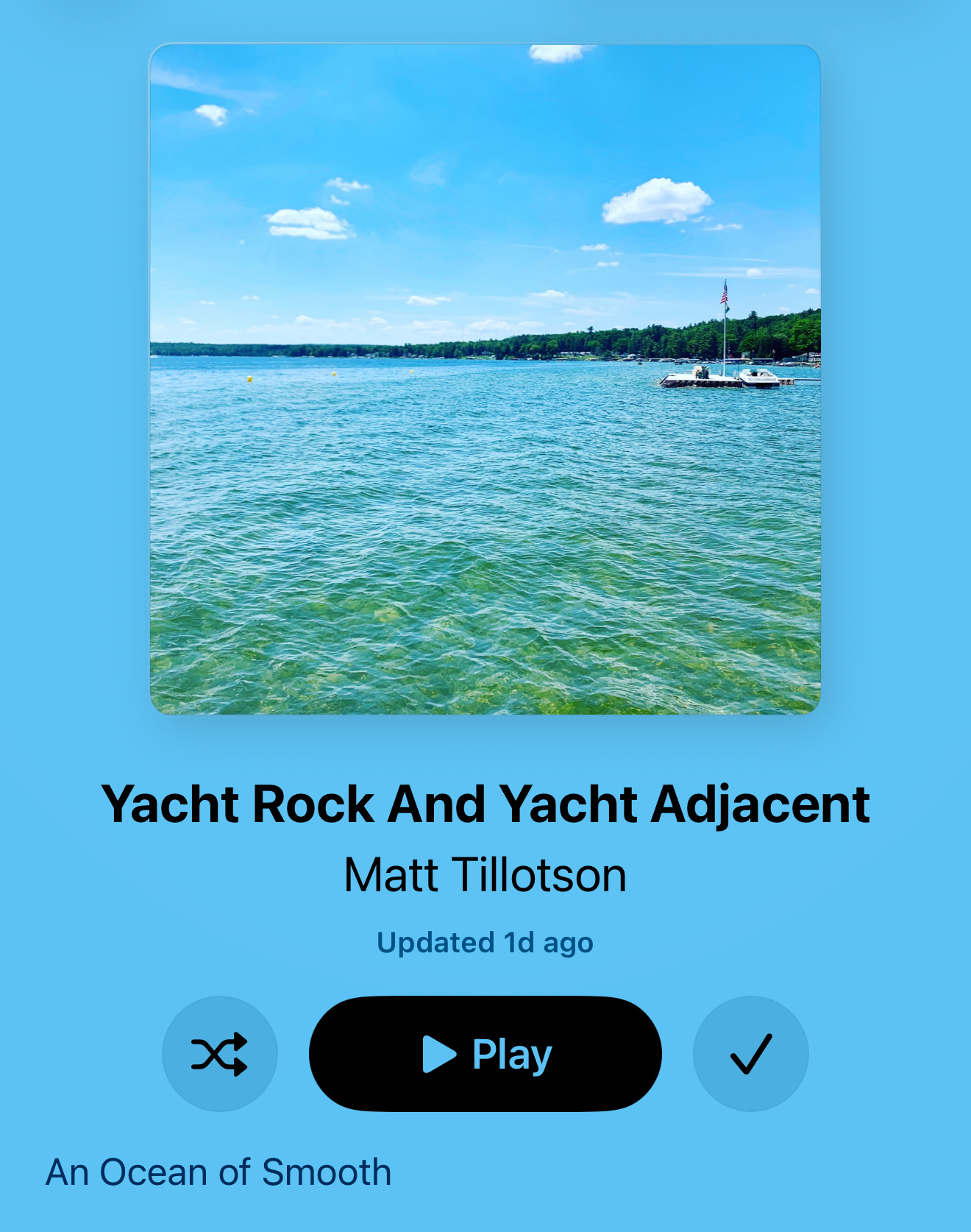
A Yacht Rock playlist with no vessels.
The loss included the Valentine’s playlist I painstakingly assembled for my wife, and wrote an entire post about.
Whoops.
What to do instead: before resetting your library, download Hezel. It backs up your Apple Music library tracks and playlist data, for free.
It takes like five seconds to back up your data. I didn’t.
The rebuild
With files and playlists obliterated, the slow rebuild began. That meant feeding CDs into an external drive, one by one, and using the XLD application for Mac to rip and organize the files.
You can rip right to Apple Music. But I wanted a backup folder first, which I’d then transfer to Apple Music.
I ripped all my CDs in lossless FLAC format, a widely used open standard for music files that is uncompressed, meaning that all the sound data is preserved. Because you’re getting complete data, an individual song can be pretty big in this format, anywhere from 30-50MB or more.3
So, lots of storage space needed, but all good. I had pristine, lossless files to upload to Apple Music.
Except I didn’t.
Mistake #2: File format
Apple Music doesn’t work with FLAC files, open standards be damned.
For lossless audio, Apple Music uses the company’s proprietary lossless format, called Apple Lossless Audio Codec (ALAC).
It takes a long time to rip a decent sized CD collection, slowly feeding disc after disc into the gaping maw of the external drive. I had no interest in starting again.
Claude came to the rescue.
Claude spun up a Python script that I copied and pasted into Terminal in my Mac. It converted all the FLAC files to ALAC. It took a few hours in the background. No sweat.
But lesson learned: for Apple Music, rip your files to ALAC format.4
The Collector’s Library Structure
So I was ready to hand over my files to Apple Music, but not without a strategy for the library going forward.
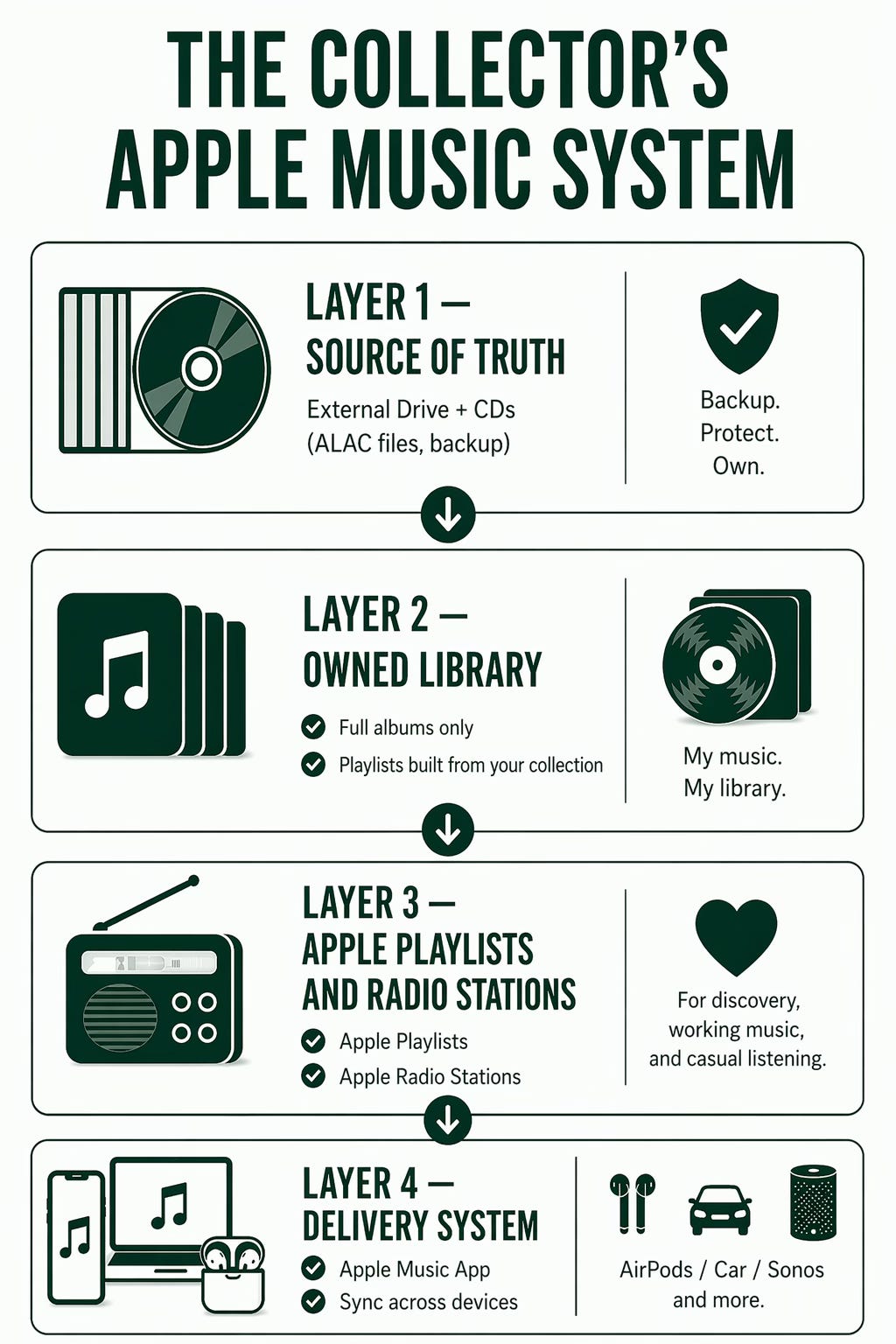
My library in Apple Music is only for files I own. I don’t click “Add to library” for any track or album that streams from Apple Music. I listen to songs that I don’t own, but never add them to library.
The library is mine. That’s what I mostly listen to. I use Apple Music streaming over the top to fill in some gaps, and for new music discovery through Apple playlists (like Today’s Country) and Apple’s radio stations.
But streaming never gets inside my library. That’s a watertight safe with only my own stuff.
Why do this? Don’t you have a life or something?
Indeed, this is a lot of uploading, curating, and cleanup headaches that are, in this streaming era, entirely unnecessary.
Unless you still want to own your music. To listen and buy with intention, without being mindlessly tossed about in a raging algorithmic river.
After all, what is a music “collection” anyway?
Inside Apple Music, it’s just a collection of data files. If you have CDs on your shelf, that’s just an inefficient storage system. If you’re into vinyl, well, that’s even less efficient.
But a music collection is something more.
It’s a curated archive of memories, audio that delivers a range of emotions and moments from your life, past and present.
A music collection is more than algorithms. To me, anyway.
Next up: Screaming Match
iTunes Match can be massive thorn in the side of music collectors.
It’s an Apple Music service that recognizes5 music you upload. It says, “Hey! I know this song, artist, and album! I have a perfectly good copy right here in the cloud so we’ll use that version for you to stream.”
But iTunes Match gets things wrong. It splits up albums. Seemingly at random, it grays out songs that you then can’t play on your iPhone because … reasons.
You can tame iTunes Match. We’ll get into that next time.
Back to circle one, really.
Playlists are a great way to “collect” without adding clutter. Or cost.
By the way, studies show most people can’t hear the difference between a “lossless” file and a song compressed to 320kbps, which strips out audio you’re unlikely to notice. So, if storage is an issue, you’re probably fine with an MP3 format.
A simple setting in XLD. No sweat.
Sometimes. Sometimes iTunes Match operates in an alternate dimension, one where your song is a different song entirely. Or maybe it doesn’t exist at all, no matter what you uploaded.